How to scan receipts with AI: a step-by-step HippoSplit tutorial
Add expenses by snapping a photo of the receipt into your group chat. The AI fills in items, amounts, category, and split, and saves the expense automatically. A step-by-step tutorial.
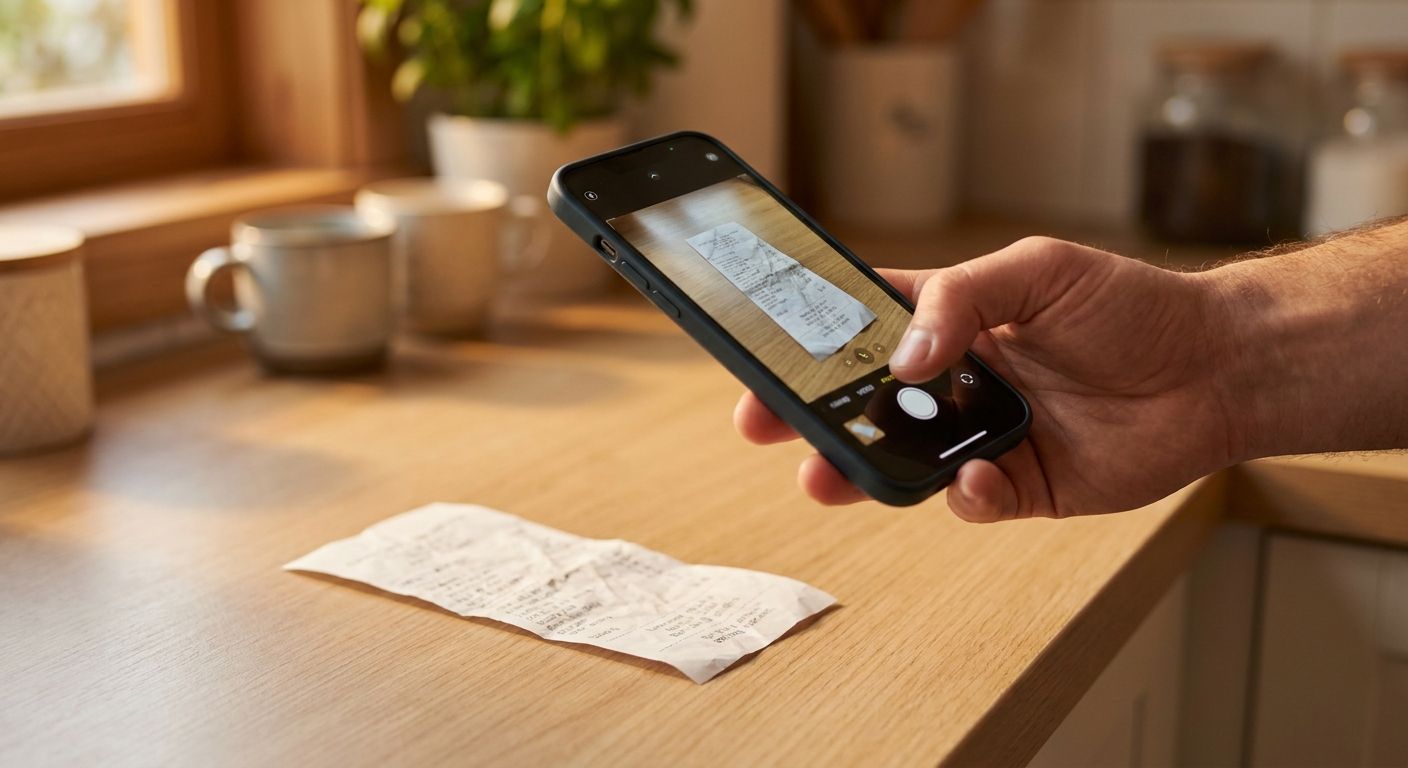
The reason most group expense tracking fails is simple: typing every expense is a chore. On a trip, at dinner, or sorting the weekly groceries with a roommate, nobody wants to stop and fill in a form. Receipt scanning fixes that, and this tutorial walks through exactly how it works in HippoSplit, step by step.
The short answer
To scan a receipt with HippoSplit, open your group chat and post a photo of the receipt, exactly like sending a picture to friends. The AI reads the photo and turns it into an expense on its own: line items with prices, the total, the currency, a category, and the split. The expense saves automatically, so most of the time there is nothing left to do; open it only if you want to change something. You can also type an expense as a normal message, like "lunch 24.50 split with Anna and Ben", and the AI logs that too.
The math is never guessed: totals, balances, and settlements are computed by HippoSplit's own backend, so the numbers can be trusted. Every free account includes 20 AI scans per week, Premium makes scanning unlimited for the whole group, and nothing needs installing: it runs in the browser, and friends can join as guests without signing up.
Before you start
All you need is a free account and a group. Open the web app, create a group for your trip, household, or friend circle, and share the invite link. Friends can join as guests without signing up.
On a phone, add the web app to your home screen and it opens like a native app. The free plan includes 20 AI scans per week.
Step 1: open your group chat
Everything in HippoSplit happens inside a shared group chat with the actual people in your group. It looks and feels like any messaging app: you talk like normal, and expenses appear right inside the conversation where everyone can see them. There is no separate "add expense" screen you have to remember to visit, although a manual form exists if you ever want to skip the AI.
Step 2: snap the receipt, or drop several photos at once
Take a photo of the receipt and post it into the chat, the same way you would send a picture to friends. That is the entire capture step. You can also drop a whole batch of photos at once, for example every receipt from a market run or a night out, and HippoSplit detects multiple expenses across the batch and logs each one separately.
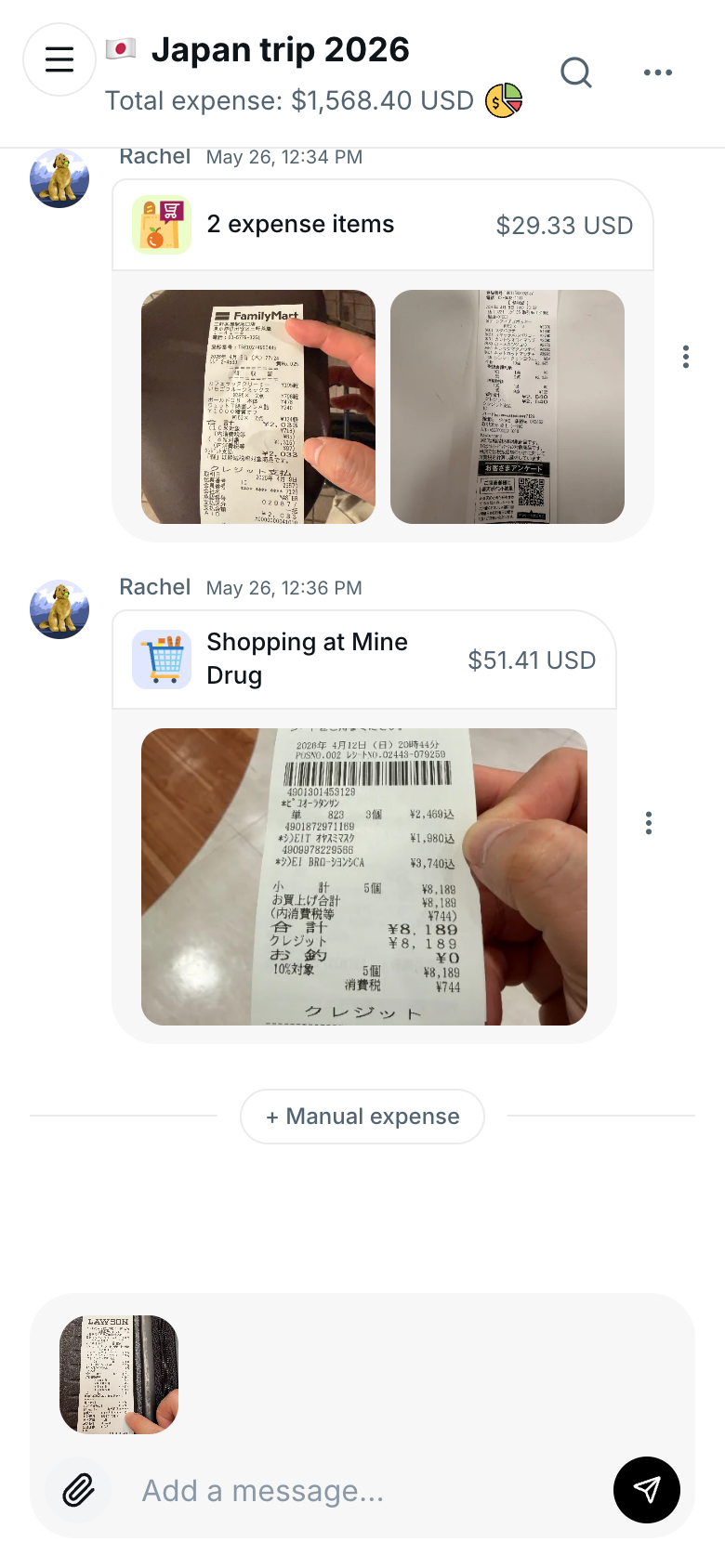
Screenshots work too: a payment confirmation, an online order summary, or a booking email screenshot all scan the same way. And when there is no receipt at all, just type the expense as a message, like "taxi 18 I paid, split equally". The AI reads chat messages the same way it reads photos.
Step 3: the AI fills everything in and saves it
A few seconds after you post the photo, the expense card appears in the chat, already saved and already counted in the group's balances. There is no confirm step and no save button. Here is what the AI fills in and where each piece comes from:
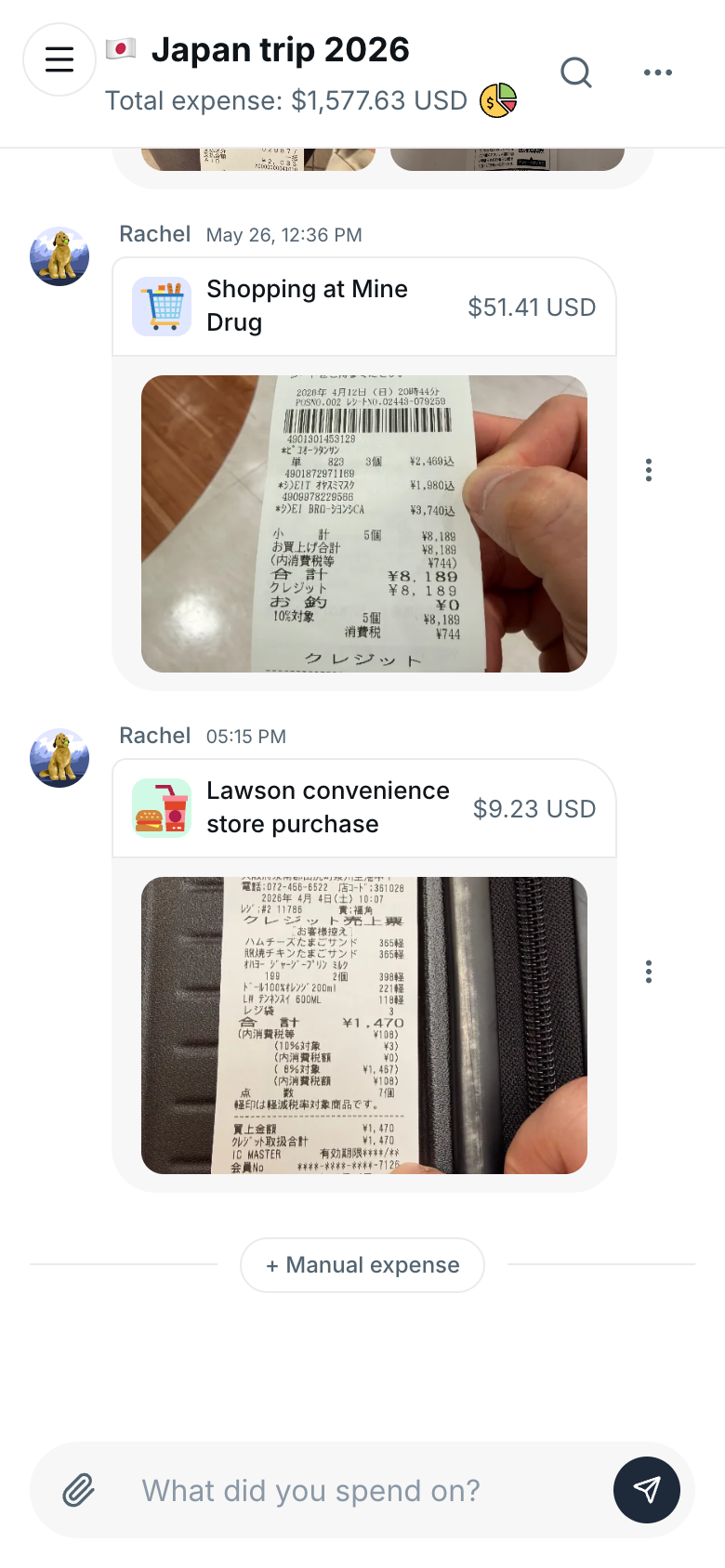
| What gets filled in | Where it comes from | Editable? |
|---|---|---|
| Line items and amounts | Read from the receipt photo | Yes |
| Total | Read from the receipt, then verified by HippoSplit's backend math | Yes |
| Currency | Detected from the receipt, converted with live rates (150+ currencies) | Yes |
| Category | Picked automatically from the merchant and items | Yes |
| Who paid | The person who posted the photo, unless the message says otherwise ("Ben paid for this") | Yes |
| The split | Your group's default split method, or whatever you described in chat | Yes |
Step 4: fix anything, you always have the final say
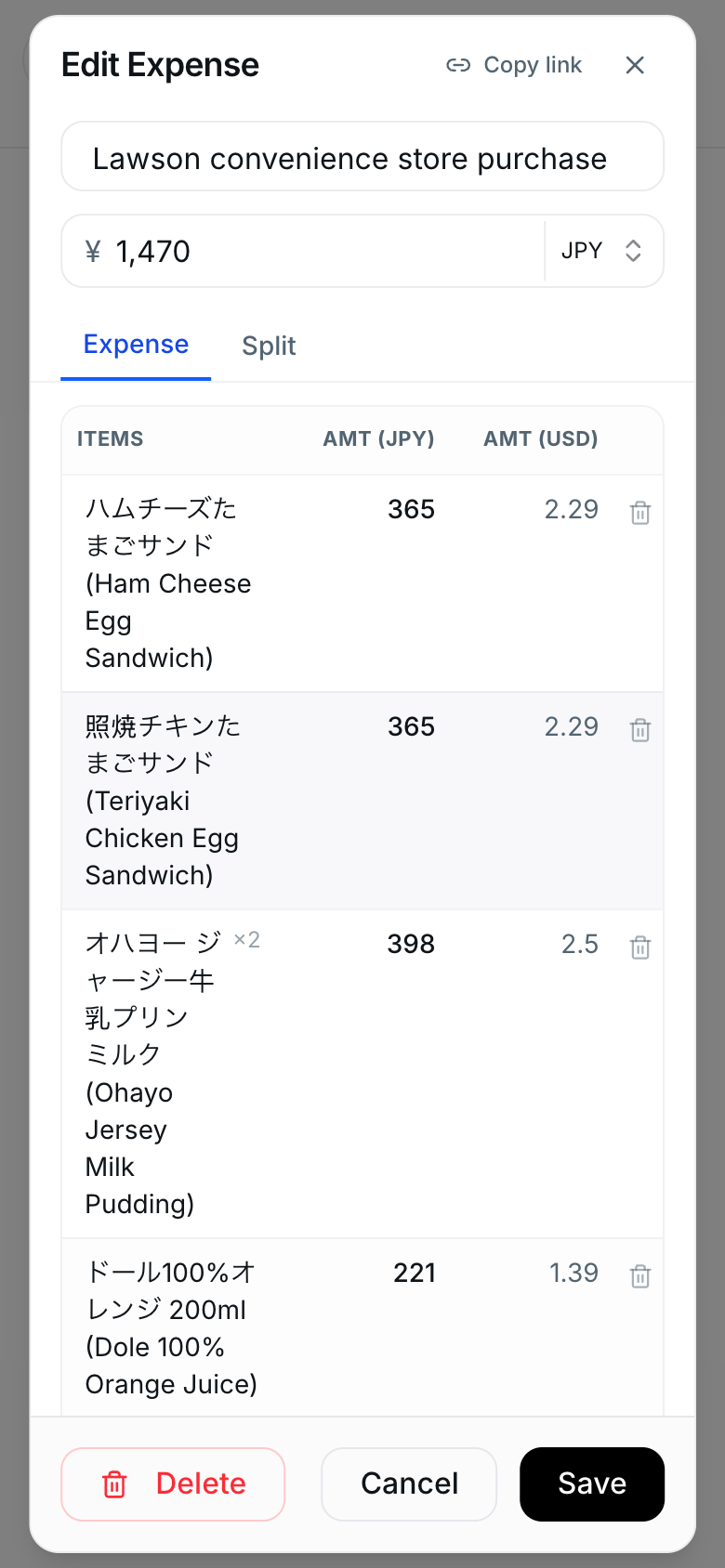
Checking is optional, and editing is too: a scan that looks right needs nothing from you. When you do want to change something, tap the expense and everything the AI filled in is editable: correct an amount, reassign an item, change the category, or adjust who is included in the split. The AI does the typing, you keep the final say.
One design decision matters here: AI reads the receipt, but it does not do the math. All totals, split amounts, balances, and settlement calculations are computed and verified by HippoSplit's backend. A misread digit is possible and fixable in two taps; a silently wrong balance is not something the system can produce.
Step 5: split by item, without the math
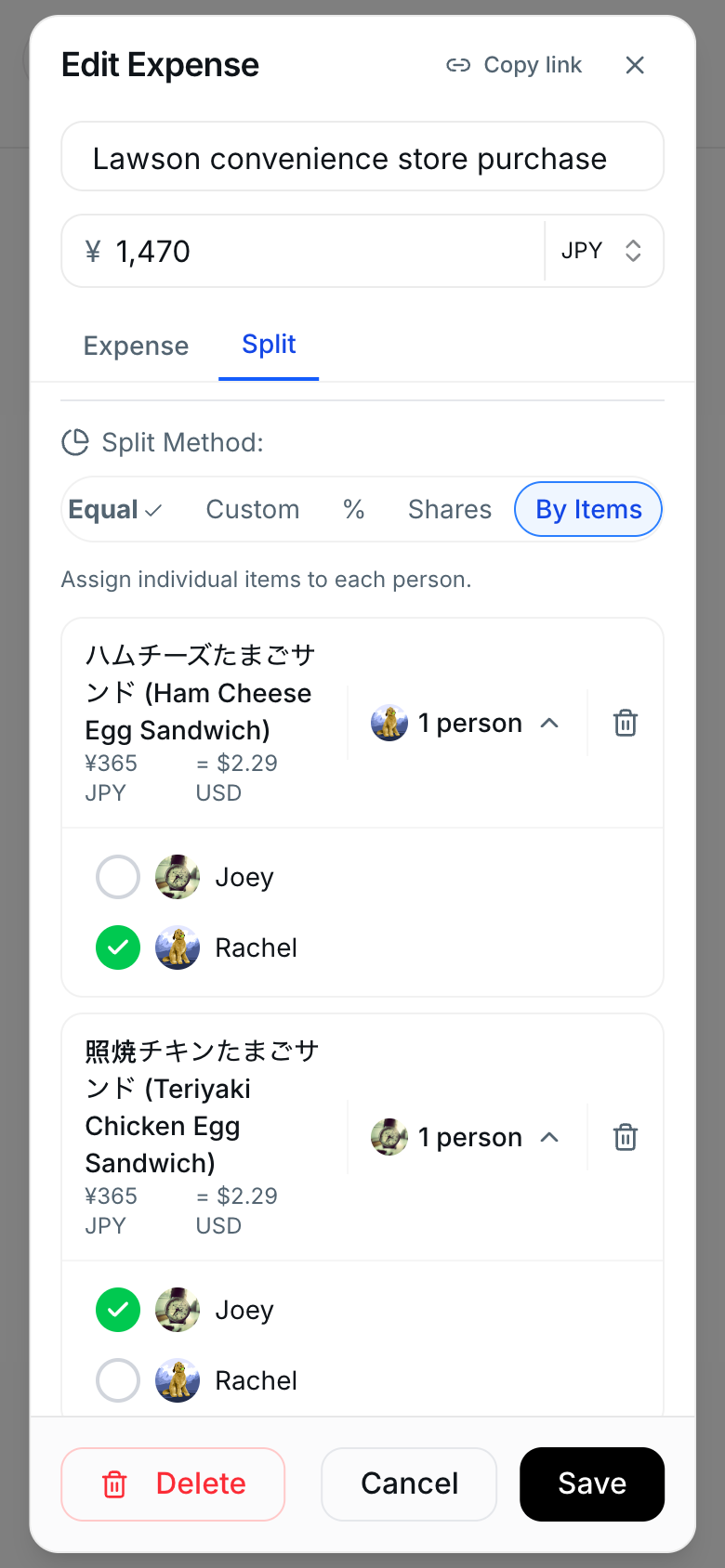
Sharing some things on the receipt and not others? Open the expense and switch the split method to By Items. Every line the AI read is already there with its name, quantity, and price, so there is nothing to type. Just assign each item to whoever had it. Anything you leave alone stays on Everyone and is split evenly among the group, so you can assign the one or two lines you care about and ignore the rest.
Step 6: set AI instructions so future scans split themselves
If your group has standing rules, write them once in the group's AI instructions, a free-text field of up to 250 characters. For example: "Split hotels 60/40. Mike covers all food and restaurant expenses." Every expense the AI logs from then on follows those rules automatically, so the scan lands already split the way your group actually operates.
You can also describe a one-off split right in the message with the photo: "only me and Ben on this one" or "split by items". Not sure which split method fits which situation? Our guide to splitting group expenses fairly covers equal splits, item splits, percentages, and custom shares.
Tips for better scans
- Flatten the receipt and shoot from above in decent light. Slight crumples are fine, extreme glare is the usual culprit when something misreads.
- Long receipt? Get the whole thing in frame. The AI reads line items, so the itemized section matters as much as the total.
- Post receipts as you go instead of batching them at the end of a trip. Capture at the moment of spending is the habit that actually sticks.
For a worked example of this habit over a whole trip, see 11 days in Japan in 61 receipts: 63 expenses scanned from receipt photos and booking screenshots, with the category, day-by-day and per-person tables built from what the scans read.
- Foreign receipts need no special handling. Currency is detected and converted automatically with live rates.
Frequently asked questions
Is receipt scanning free?
Yes. Every free account includes 20 AI scans per week, and a scan is a receipt photo, a batch photo, or a chat message the AI turns into an expense. Premium ($5.99/month or $49.99/year) makes scanning unlimited, and only the group creator needs it: everyone in their group gets unlimited scanning at no extra cost.
What kinds of photos can it read?
Paper receipts, screenshots of payment confirmations or online orders, and plain photos that contain expense information. It can also pull multiple expenses out of a batch of photos posted together.
Does the AI calculate who owes what?
No, and that is deliberate. The AI reads photos and messages, but all totals, balances, and settlement amounts are computed and verified by HippoSplit's backend. AI convenience, calculator reliability.
What about receipts in other currencies?
HippoSplit handles 150+ currencies with live exchange rates, so street food in Bangkok and a hotel in Paris can sit in the same group and settle in one currency. See our guide to splitting trip expenses with friends for the full travel workflow.
What if the AI gets something wrong?
Open the expense and edit it. Every field the AI fills in is editable, and because the group sees expenses in the shared chat, a wrong amount rarely survives long: someone spots it and it gets fixed in seconds.
Do I need to check and save every scan?
No. The AI creates and saves the expense on its own, filled in and counted in the group's balances right away. Reviewing is optional and editing is optional. If a detail is wrong, open the expense and change it; if not, there is nothing to do.
Try it on your next receipt
Create a free group, post your next receipt into the chat, and see what comes back. And if you are still comparing tools, our honest roundup of the 7 best expense splitting apps shows where HippoSplit fits and where a different app might suit your group better.